
A mid-sized distributor recently tried to speed up its purchasing process by enabling an automated forecasting tool. The manager expected the ERP system to recommend ordering a few extra pallets of summer inventory. Instead, the system recommended buying 5,000 heavy winter jackets in mid-July.
Why did this happen? The company had never updated or removed outdated seasonal product tags that were created five years earlier. As a result, the AI relied on inaccurate historical data when making its forecast. The system was simply following the patterns it found in the available data.
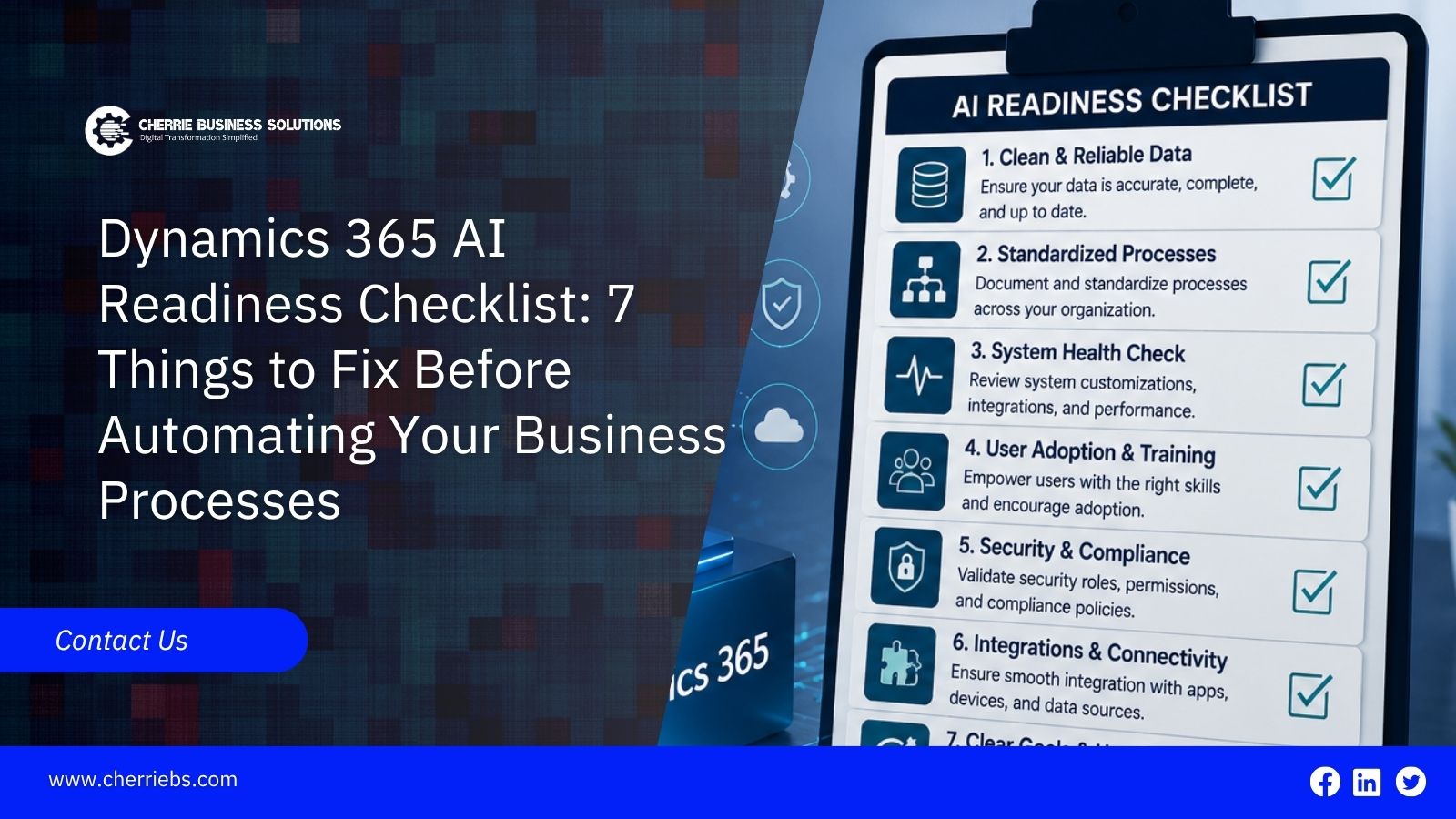
Microsoft Dynamics 365 ERP systems can meet your expectations for smart automation, but they only work if your data is clean first. Artificial intelligence cannot guess what you mean. It only reads what data is provided. Here is a checklist of seven specific things you need to fix in your database before letting software make decisions for your business.
The first thing you need to look at is how you actually count the items sitting on your shelves.
1. Clean Up Your Units of Measure and Decimals
An AI-integrated automated ERP system does not automatically know the difference between a single piece, a box, and a pallet. If your warehouse workers buy items by the pallet but sell them by the piece, your unit of measure conversions must be perfect.
Many businesses have sloppy decimal setups. For example, a company might allow inventory to be divided into four decimal places, leaving records that show you own 2.0045 boxes of screws. A human knows to just count that as two boxes. An artificial intelligence tool will read those tiny fractions and include them in heavy financial calculations, causing strange rounding errors on your balance sheet.
Go through your item catalog and lock down your base units. Make sure a box of ten is always recorded as a box of ten.
Once your counting rules are strict, you need to hide the old products you no longer sell.
2. Archive Your Outdated Historical Data
Artificial intelligence learns from your past actions to predict your future needs. If you leave wrong history sitting in your active database, the system will learn the wrong lessons.
Suppose you stopped selling a specific brand of safety gloves three years ago because they were poorly made. If those items are still marked as active in your ERP, an automated ERP tool might notice that you have zero in stock and automatically draft a purchase order to restock them.
You need to clear and organize them. Go through your item lists, vendor cards, and customer files. Block outdated items, close old blanket orders, and archive inactive customers. Give your new automation tools a clean view of what your business actually does today.
After cleaning your records, you have to look at the custom rules hiding in your software.
3. Remove Conflicting Custom Code
Over the years, many companies pay programmers to write custom code for their software. You might have a custom script from five years ago that forces a specific shipping fee on every order.
When you turn on the standard automation tools built into Dynamics 365, those old custom scripts often conflict with the new technology. The automated system tries to calculate the cheapest shipping route, but your old hard-coded rule blocks it from happening. The system gets stuck in a loop and fails.
Before automating a process, have your IT team review your old software extensions. If a new built-in feature does the exact same job as your old custom code, delete the old code. Keep your system as close to the standard Microsoft setup as possible.
With your internal system cleaned up, you have to figure out how to feed the system outside information safely.
4. Connect Your Business Information
Artificial intelligence is only as smart as the information it is allowed to see. If your company keeps its financial ledgers in Dynamics 365, but all your customer service emails live in a completely disconnected software program, your automated tools have a massive blind spot.
Imagine asking a smart tool to flag client accounts that are at risk of leaving. If the tool can only see the billing history inside the ERP, it might look at a customer who pays on time and report that the account is perfectly healthy. However, if that tool could also see your disconnected service software, it would notice the customer has filed ten angry complaint tickets this month. Because the data was separated, the artificial intelligence gave you terrible advice.
Before turning on advanced automation, you have to break down these walls. You need to consolidate your outside applications so they feed directly into your Microsoft environment. Instead of maintaining five different software islands, work with your IT team to integrate your external factory logs, shipping portal data, and marketing metrics into one unified storage space. When your ERP knows exactly what is happening across every single department, your automated tools can finally make business recommendations that actually make sense.
5. Rebuild Your Human Approval Workflows
Automation moves at lightning speed. It makes zero sense to have a computer draft a perfect purchase order in two seconds if a human manager takes four days to approve it on a piece of paper.
Look closely at your current approval rules. If your company requires the CEO to manually sign every purchase over 50 dollars, automation will not save you any time. You need to raise your automatic approval limits. Update your rules inside Dynamics 365 so the system can automatically approve and send routine orders without human permission. Save the manual approvals only for massive, highly expensive exceptions.
While you are changing what people can approve, you also need to change what they are allowed to see.
6. Lock Down Your Security Permissions
Smart tools like Microsoft Copilot in Dynamics 365 ERP are designed to search your entire database to find quick answers for your employees. The tool only respects the security rules you actually turn on.
A common trick in older systems is hiding a sensitive financial field from the computer screen without actually locking the database behind it. An employee might not see the company profit margins on their daily screen. But if they ask the automated chat tool, "What is our profit margin on this item?" the tool will bypass the screen layout, read the open database, and give them the answer.
You have to assign strict, role-based security groups. Make sure warehouse workers are completely locked out of the financial ledgers at the root level. When the security is tight, the artificial intelligence will simply tell unauthorized users that they do not have permission to see that information.
Finally, before you let the whole company use these tools, you need a safe testing plan.
7. Test the Automated Actions in a Sandbox
You should never let a new automated tool make its first decision in your live business environment. A single wrong setting in an automated workflow could accidentally send five hundred blank invoices to your best customers within seconds.
Always use a sandbox environment. A sandbox is a completely isolated copy of your Dynamics 365 system. It has all your items and customers, but none of the actions are real. Turn the artificial intelligence on inside the sandbox first. Give it a task. Ask it to forecast inventory or write a collections email, and see exactly what it produces. If it makes a horrible mistake, you just wipe the sandbox clean and fix your settings.
Get Your ERP Systems Ready for AI With Cherrie Business Solutions
Working through this specific list is the only reliable way to ensure your automation project succeeds. Smart technology will never fix a disorganized database or a broken daily workflow. By taking the time to clean your master data, lock down user security, standardize your naming formats, and connect your software systems, you give Dynamics 365 ERP the exact facts it needs. When you combine that clean information with proper staff training and safe testing, your automated tools will actually save time instead of creating new problems.
Getting all of these moving parts perfectly aligned takes a lot of technical focus. You do not have to figure out this preparation phase by yourself. The experts at Cherrie Business Solutions specialize in building a flawless foundation before you ever press the start button. We work directly with your staff to clean up those messy historical records, fix your user permissions, and translate your true business rules into the software. Let us handle the heavy lifting of system preparation. Reach out to us today to start your readiness audit and step into automation with total confidence.